One of the new features in SharePoint 2013 is the ability for any users to “share” documents with people, whether they have the appropriate permission or not for that document. Now that is a mighty strange concept, because Microsoft takes pride in is the fact of how secure SharePoint can be. SharePoint permission, and how that is broken down, not only vertically, but horizontally, makes SharePoint very flexible as well as safely securing information within the site. But with the new Share feature, Microsoft is introducing a faster way of creating more access to information. I tested the new feature on my PC and it works beautifully. The Share feature is really just a shortcut on item level permission with a bit of workflow sprinkled on top. There are a few steps to make it work…
In order to access the Share feature, a user need to click on the ellipses of the document and click Share or select the Files ribbon and locate the Share icon button.
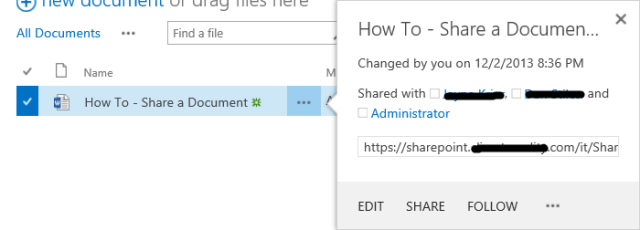

The next screen is a bit different depending on your initial permission level. For example as a site collecation administrator or site owner, because I am a site owner to this particular library this is what the window will appear to me:
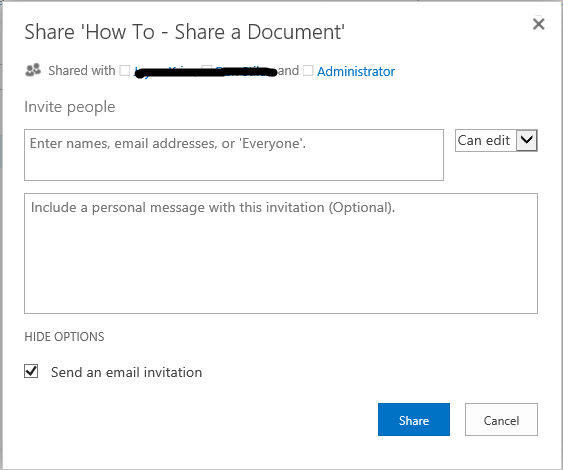
I have the ability to invite people, set the permission as either Can edit or Can view, send a personal message via an email invitation. Once I click Share, that person will have access to the document in that library and nothing else. Again, the Share feature is a shortcut to item level permission. But what if I am just a contributor and not a site owner. Once I click Share, either via ribbon or ellipses, I get the following screen.

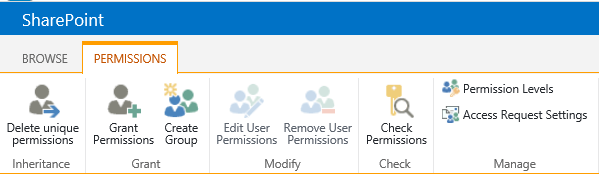
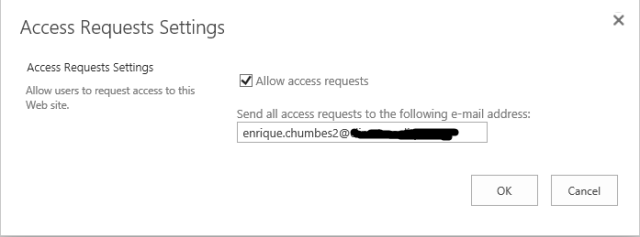
What is missing is the ability to set permission of Can edit or Can view. So what happens when I click on Share as a contributor? What happens is two emails will be sent instead of one. One will be sent to the person you want to give access to the document, stating that he/she will soon have access to the file. But more importantly, the second email will be sent to the email address identified under the Access Requests Settings. This setting is located in the Site Settings | Site Permissions at the root site. There will be a button called Access Request Settings. By default, this is left blank. So if you click on Share and this setting was not configured, then unless you check under Access requests and invitations under Site Settings, that person will never get access to the document. The Access Request Settings needs to be configured in order for Share to work.
In short, as a site owner, once I click on Share, since I am identified as a site owner, I have the ability to allow access to the document to whomever I want. But as a contributor, once I click Share, it is up to the person identified (usually the site owner) to actually approve who I want to give access to as well as select the permission level.
For the most part this works great, but it does allow the ability to add more and more item level permission to a library. With unique permissions, comes some headaches. I would discourage the use of this as a practice unless the business drivers really depends on sharing documents throughout the organization, for example a project site with multiple and dynamic users needing access to documents.
I was with a client who needed the Share functionality to work because their organization does have multiple projects running at the same time with different department needing access to documents, not necessarily to the library or site. The new SharePoint 2013 Share feature seems to be a great solution for their work processes. The wrinkle to this scenario was that the organization was 98% using Mac, and primarily Safari as their web browser and Mac Office 2011 as their default office suite. So the question is, does Share feature works for the Mac? Not really. I found this to be a big fail and the problem wasn’t really SharePoint or the Share feature, but Safari and Mac Office 2011.
So the setup of Sharing is still the same, but once that user gets the link and clicks on the link to the document, with Internet Explorer, it downloads the document into a temporary folder, but keeps the “synchronization” with SharePoint. So if the library is set up for required check-in/out, Microsoft Word 2013/2010 will respect those settings; synchronization between SharePoint and the document will remain intact, so the integrity of the document will be viable. Unfortunately, if you are a Mac users, if you click on the link using Safari, there is no temporary folder it downloads the document to, you will actually download the document to your desktop. The synchronization between SharePoint and document is completely severed so none of the document settings, i.e. check-in/out will be reliable. As a Mac user, opening up SharePoint and going to the library itself and opening the document, synchronization is kept intact. But with the new Share feature, specifically for users who does not have access to the library, they only have access to the document via a link. And because of that, synchronization is lost.
So the question on my end was it possible to “reconnect” that synchronization from Microsoft Word 2011 for Mac with SharePoint 2013? And after several possible workarounds, it was not possible. The issue then becomes on the Office application and how they are tied with SharePoint. Once you open Word, there is only one possible way to reconnect to SharePoint, you would need to go File | Share | Save to SharePoint… Unfortunately, if you set your library to require Check In or if you would like to check out or check in the document, that is not available, because the synchronization is no longer avaiable.

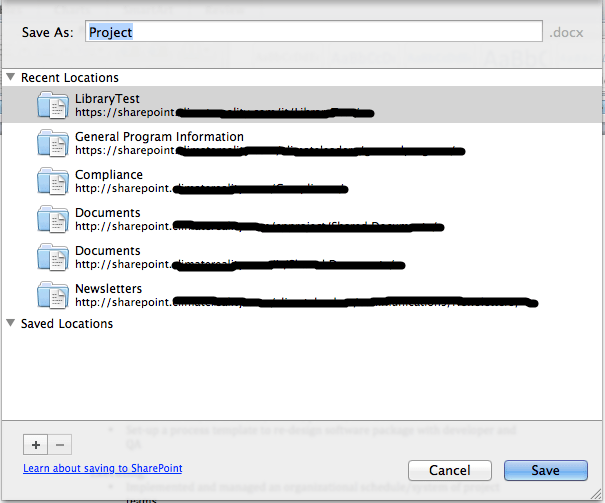
The Save to SharePoint… will open up and you are able to save the document to a recent location or if you click on the + button, type the url of the SharePoint library to save it at. I have found through testing that this method does not work all the time. Moreover, the user will have a copy of the document downloaded, so the integrity of the document is compromised.
The other workaround is leveraging the Microsoft Document Connection, this application can be located in the Microsoft Office 2011 for Mac folder in the Application folder. This seems to be a tool that Microsoft created to help Mac users move files to SharePoint and Skydrive. Once opening up the application and adding the location, with proper credential, one can navigate to SharePoint site. But the problem is and still remains, is that the Share function is an item level permission, so if the user doesn’t have access to the library, although user might have access to the document in that library, the navigation falls short.

In short, the Share features is a nice addition to SharePoint 2013, but it does come with some not so great result. On the Windows side, things work great with Share, but it is a shortcut on allowing contributors to create item level permission. As a SharePoint practitioner, I will try my best to avoid creating these item level permission breaks, because it can lead to permission confusion as well as some performance issues. There is that check and balance with the site owner to make sure that documents have the proper permission, but it does open up the possibility of mistakes. On the Mac side, the Share feature does not work at all. I might be able to live with the fact that Safari does break the synchronization of the file and SharePoint 2013. What I can’t understand is why there isn’t a method or process to create a smooth reconnection between SharePoint and the document. Moreover, the Microsoft application for Mac is 2011, not yet caught up with 2013. I think some of these problems might go away once Microsoft release the latest Office suite for Mac, but Share will always cause issues because of the download.
 Enrique Chumbes: IT Chatterbox